Deck views
Choose a two-deck, four-deck, Track Prep, or Stem Studio layout. Enable views in Settings and press V to cycle through them.
Ora DJ has five deck view choices. 2-Deck Stacked, 4-Deck Stacked, and 1-Deck Track Prep are enabled by default. Open Settings > Display > Deck views to add or remove views from the picker.
Available views
| View | Layout | Enabled by default |
|---|---|---|
| 2-Deck Stacked | Decks A and B with their zoom waveforms stacked above the decks. | Yes; the initial view. |
| 2-Deck Side | Decks A and B side by side, each with its own zoom waveform. | No. |
| 4-Deck Stacked | Decks A, B, C, and D with four stacked zoom waveforms and an optional four-channel mixer. | Yes. |
| 1-Deck Track Prep | Deck A with beatgrid, cue, and phrase editing. Collapses into a compact single player. | Yes. |
| Stem Studio | A workspace for separating and working with a track's stems. Requires a supported Apple Silicon installation. | No. |
The former 1-Deck Player is now the compact form of 1-Deck Track Prep, not a separate entry in the view picker.
Switching views
- Use the view button in the app header, which shows the selected view's name.
- Choose a view from the View menu in the macOS menu bar.
- Press V to cycle through your enabled, available views.
With the default settings, V cycles through 2-Deck Stacked, 4-Deck Stacked, and 1-Deck Track Prep. If you enable every view, the order is 2-Deck Stacked, 2-Deck Side, 4-Deck Stacked, 1-Deck Track Prep, then Stem Studio. Stem Studio joins the cycle when enabled and supported.
Your enabled views and selected layout are remembered across restarts. At least one view other than Stem Studio must stay enabled. Turning off the current view in Settings switches to another enabled view.
Compact view and the single player
Press Shift + Space, or use the Compact view button in the header, to give more space to the library. Use the same shortcut or Full view to expand again.
- In a two-deck view, compact mode reduces the decks and hides the mixer and FX panel.
- In 4-Deck Stacked, it shows A and B above C and D in a 2×2 grid, without the mixer or stacked zoom waveforms.
- In 1-Deck Track Prep, it collapses the editor into one full-width player for deck A.
- Stem Studio has no compact mode.
Selecting 1-Deck Track Prep from the picker, View menu, or V opens the full editor. Collapse it afterward if you want the single player.
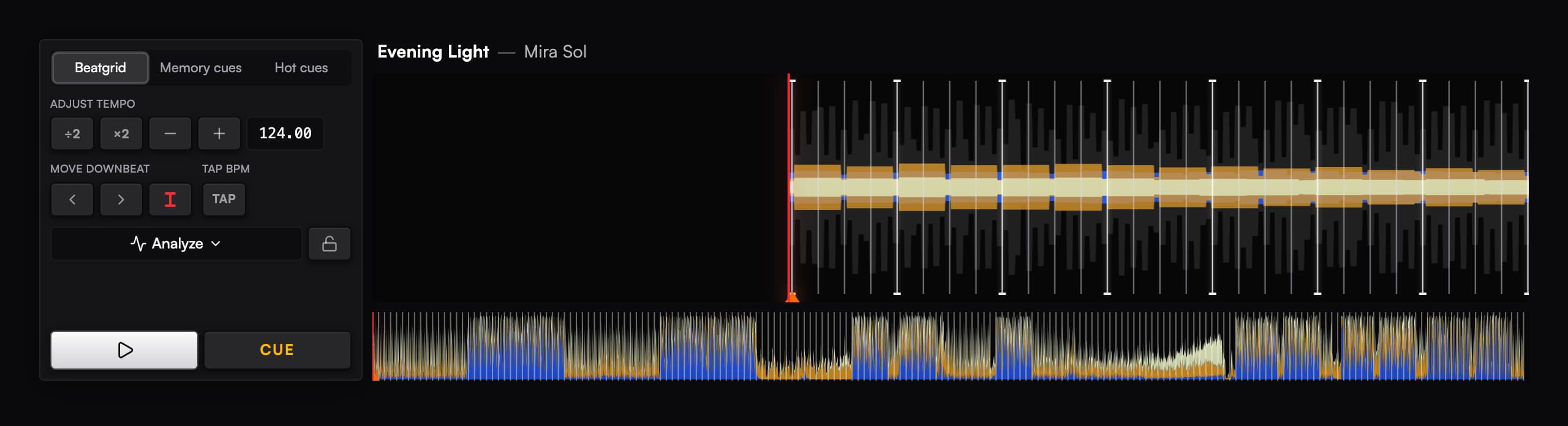
See Track Prep for beatgrid, cue, and phrase editing.
Four decks
4-Deck Stacked gives you decks A, B, C, and D. The four zoom waveforms share a zoom level. Below them, A sits above C on the left and B above D on the right. When the mixer is shown, its strips run C, A, B, D from left to right.
The deck panels keep the overview waveform, transport, and tempo fader. The hot cue grid, loop row, and individual zoom waveforms are omitted from these condensed panels. Switch to a two-deck view for those controls.
Loading decks C and D
The library's double-click action targets deck A. To load C or D:
- Drag a track from the list onto the C or D deck. A playing deck keeps playing; a stopped deck loads paused.
- On a DDJ-GRV6, use LOAD 3 or LOAD 4. DECK SELECT switches each physical deck between its A/C or B/D layers.
The DDJ-400 and DDJ-FLX4 have two deck-loading controls for A and B. You can still load C and D by dragging tracks onto them and use the on-screen mixer.
Home, Duplicates, and Archive
Home and Duplicates show a compact single player for deck A, regardless of your selected deck layout. Leaving either screen restores the selected layout. Duplicates keeps the compact player fixed while you compare tracks.
Archive has no deck area. Its view picker is disabled, with the tooltip Not available in this view.