Importing Tracks
Add a folder once. Drop in new tracks whenever they arrive and Ora picks them up automatically, with a notification to act on the batch.
New tracks show up on their own
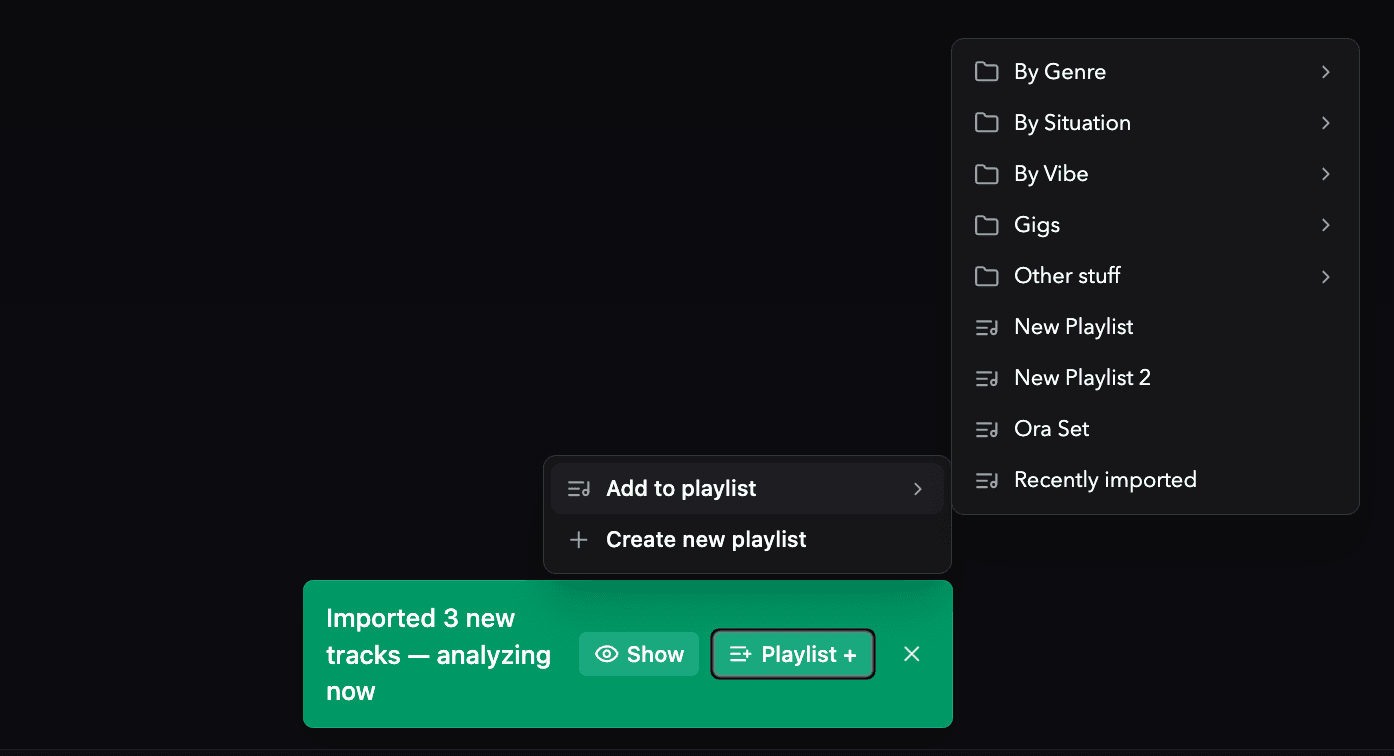
While Ora is open, it watches your library folders. Drop a new file into one and it appears in the library within a few seconds, no action needed. A notification confirms what arrived with three shortcuts:
- Show: filters the library to exactly the tracks from that import. The view is temporary; closing it or navigating away returns you to your full library.
- Playlist +: opens a dropdown to add the tracks to an existing playlist or create a new one with them already inside. Creating a new playlist opens it immediately with the name field ready to edit.
Every time you launch Ora it quietly rescans your folders too, and if anything new turned up while the app was closed, the same notification appears. There is no Rescan button to remember.
Add a folder
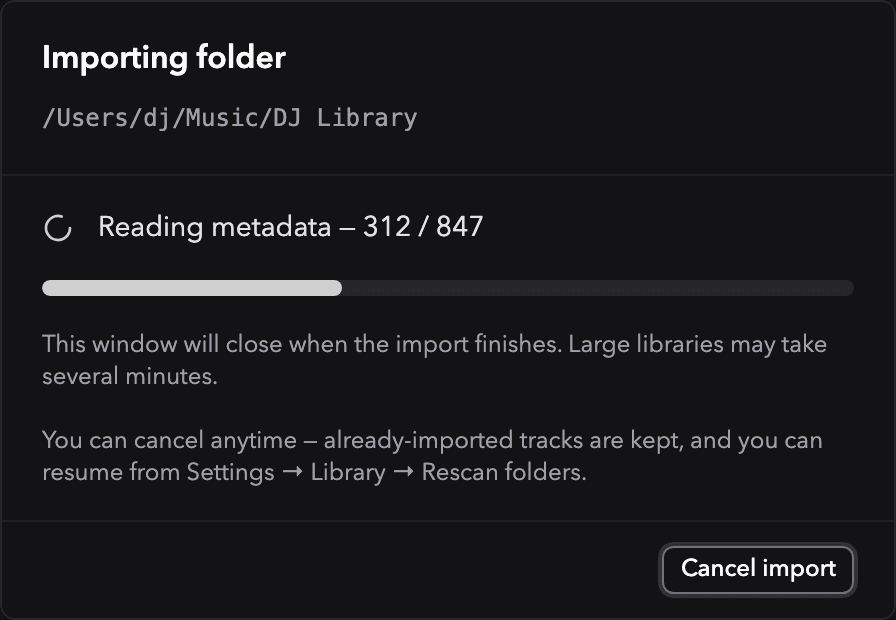
Open Settings, go to the Library page, and add a folder of music. Ora walks it recursively and imports every supported audio file it finds:
.mp3.wav.m4a.flac.aiffand.aif
A progress modal shows two phases: first it counts the files, then it reads each
one's tags for the artist and title. When those tags are missing, Ora infers the
artist and title from the filename, so a file named Artist - Title.mp3 still
lands in the right place. BPM, key, waveform, and energy are not read from the
file. Ora measures them itself once the track is in, through
Track Analysis.
Your files stay put
Importing is not copying. Ora reads your tracks where they live on disk and never moves, renames, or duplicates them.
Two things follow from that:
- Rename, move, or relocate a track and Ora reconnects it with its analysis, cues, playlists, and tags. See Moving and renaming files.
- Import a track from an external drive, then unplug the drive, and the track shows as missing rather than gone. Reconnect the drive and it comes back.
Analysis starts automatically
The moment tracks are imported, Ora queues them for analysis: BPM, key, waveform, and energy. It runs in the background and steps aside while you play, so it never competes with the music. See Track Analysis for what gets measured and how the queue behaves.
Coming from Rekordbox
If your collection already lives in Rekordbox, you can bring it across in one pass, with cue points, playlists, ratings, and tags. That is a separate path with its own options. See Rekordbox import and export.
Importing the same filename from two different folders can make a Rekordbox XML import ambiguous. Import the relevant folder first to keep matches clean.
Library management docs
Build, analyze, and organize your DJ library in Ora. Import tracks, clear duplicates, tag and filter, prep beatgrids and cues, and move tracks in and out of Rekordbox.
Moving and Renaming Files
Ora reconnects renamed, moved, or relocated files to their existing track, keeping analysis, cues, playlists, and tags.