Rekordbox import and export
Import your Rekordbox library straight from its database, and export your Ora DJ library back out as Rekordbox XML.
Ora DJ reads your Rekordbox library directly from its database, so there's no XML export step to bring it in. To go the other way, it writes a Rekordbox XML file that Rekordbox reads as a library source.
Import from Rekordbox
Ora DJ reads the Rekordbox database on this computer. You don't export anything from Rekordbox first.
Open Settings, then Library, then Import Rekordbox. Ora DJ finds the database on its own:
- macOS:
~/Library/Pioneer/rekordbox - Windows:
%APPDATA%\Pioneer\rekordbox
If your database is somewhere else (an external drive, a second library), click
Change and point it at the folder that holds master.db.
Ora DJ reads from a copy of the database and never writes to it. Nothing in Rekordbox changes.
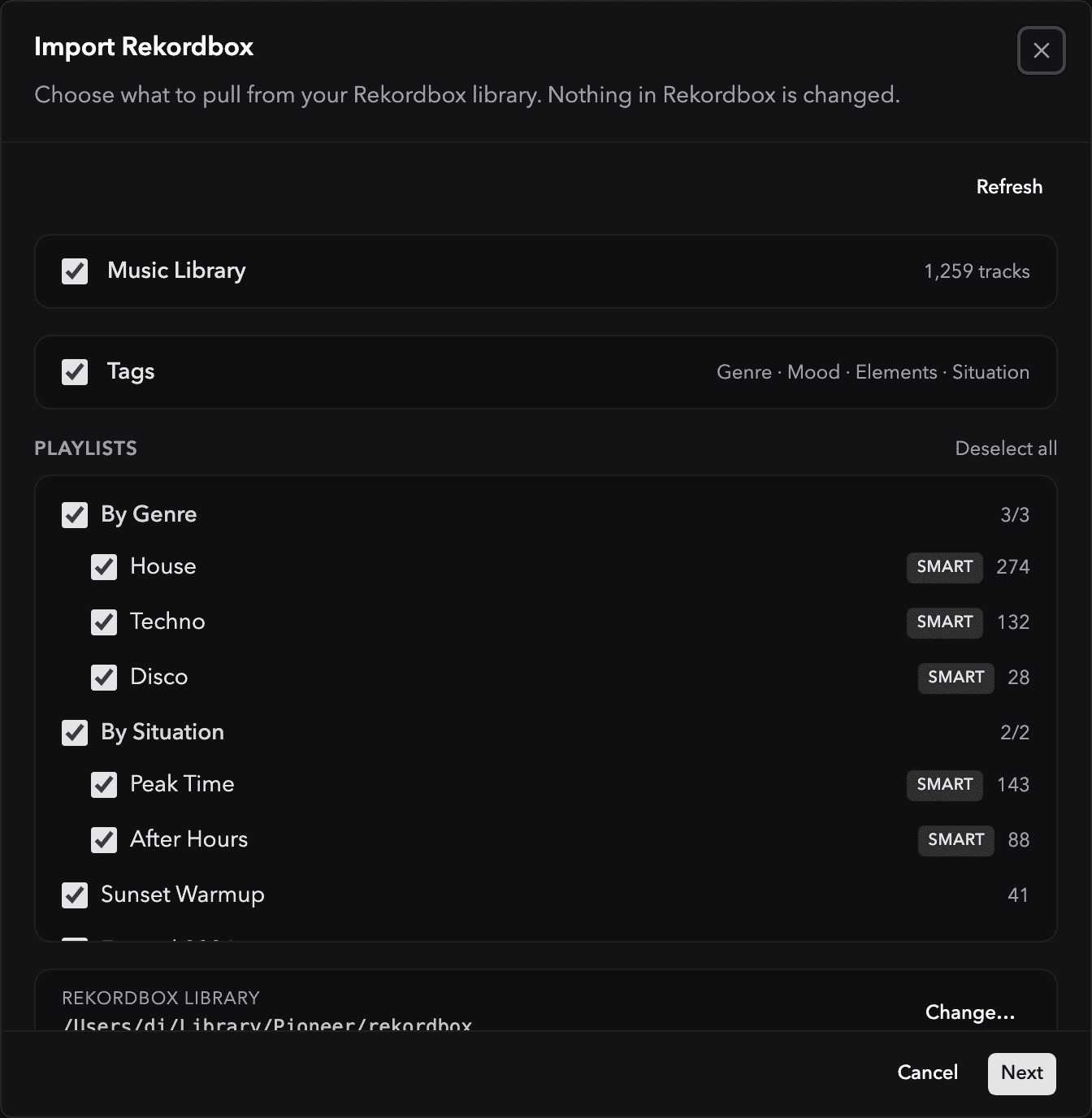
Choose what to import
The first step is a tree of everything in your Rekordbox library. Tick what you want to bring across:
- Music Library: every track, with the total count.
- Playlists: your folders and playlists, in the same hierarchy as Rekordbox. Tick a folder to take everything inside it, or pick individual playlists. Tracks used by a playlist you select come in even if you leave the Music Library unticked.
- Tags: your My Tag groups (Genre, Mood, and so on).
Smart playlists are marked smart (see Smart playlists below).
Choose how it merges
The second step decides how the import meets your existing Ora DJ library:
- Import new tracks: brings in tracks that aren't in your library yet.
- Update tracks: also updates tracks you already have. Under it you choose what to overwrite: the BPM and cues, the key, and the rating.
- Import new playlists and Update playlist tracks by playlist name and folder location.
What gets imported
Per track: the BPM, the key, hot cues (up to eight), memory points (up to ten), the rating, play count, and comments. The Rekordbox track ID is kept too, so the same tracks line up if you export back later.
Your My Tag structure comes across in full: the groups (Genre, Mood, and the rest), the tags inside each one, and which tracks carry them. This is the part a Rekordbox XML file leaves out.
Ora DJ builds its own beatgrid from analysis. The database holds the BPM and cue positions but not the grid itself, so cues settle onto the Ora DJ grid once a track is analyzed.
Smart playlists
A Rekordbox smart playlist is built from rules, like "genre is House" or "rating is 4 or more". Ora DJ reads the rules and brings in the tracks that match right now as a normal playlist. It's a snapshot: run the import again to refresh it. A rule it can't read (some date and range conditions) is listed in the summary and left out.
How tracks are matched
Each Rekordbox track is matched to one in your library in order of confidence: exact file path first, then file name, then artist and title, then duration within two seconds. If a match is genuinely ambiguous, the import stops and lists the tracks rather than guessing.
A track whose file isn't on this computer (an external drive that's unplugged, say) comes in as missing, so the reference is ready when the drive comes back. Tracks in an unsupported format are left out and counted in the summary.
Import from a file instead
If Rekordbox is on another computer, import a Rekordbox XML file instead. In the import window, click Import from XML instead. Export the file from Rekordbox first: open File, choose Export Collection in xml format, and save it. Then pick that file in Ora DJ. The merge options and matching work the same way.
A few things to know
- Your own smart filters are protected. A smart filter that shares a name and folder with a Rekordbox playlist is never overwritten on import. Ora DJ keeps yours and notes it in the summary.
- Both key formats are read. Camelot (
8A) or musical notation (A minor), either is understood. - Supported formats are the same as the rest of the app:
.mp3,.wav,.m4a,.flac,.aiff, and.aif.
To send your library to Traktor instead, see Traktor export. To export a planned set as a tracklist or spreadsheet, see Export playlists.
If the preparation workflow is why you are looking beyond Rekordbox, compare the best Rekordbox alternatives in 2026.