Effects
Choose a regular FX effect, route it to a channel or master, and control its timing and level.
The FX panel applies an effect to a selected mixer channel or the master output. It is separate from the per-channel SCFX controls and the PAD FX on performance pads.
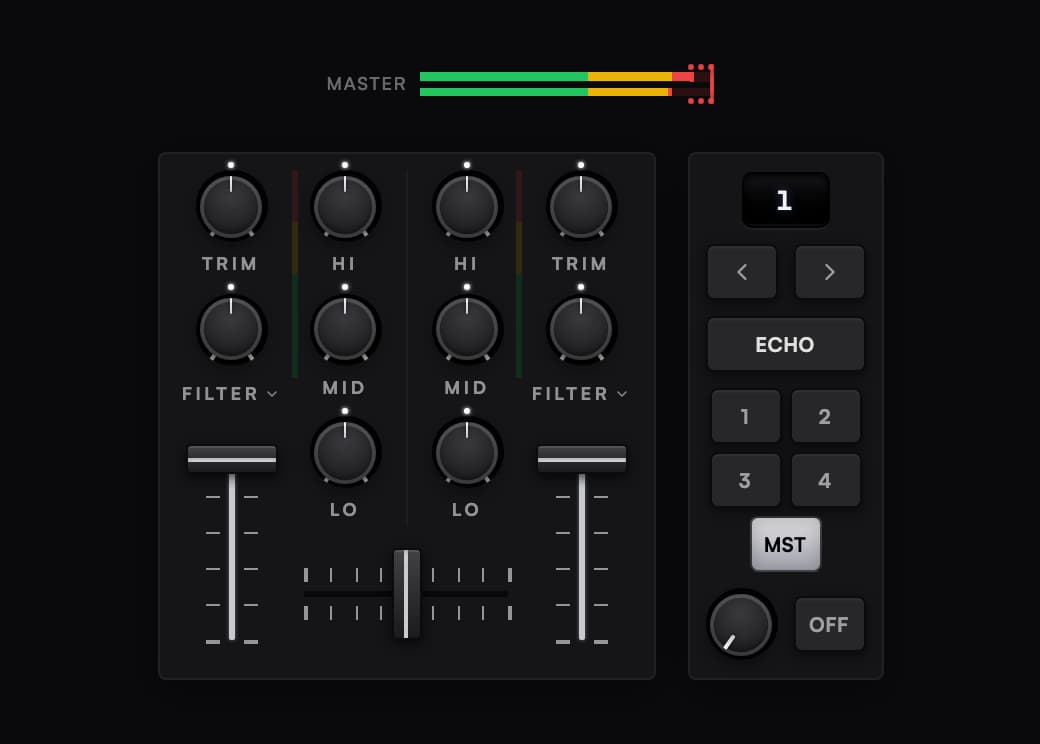
Apply an effect
- Choose an effect in the FX panel.
- Choose its target: channel 1, 2, 3, 4, or MST for the master.
- Adjust the beat timing and Level.
- Use ON/OFF to engage or bypass it.
Channel numbers follow the mixer: 1 is deck A, 2 is deck B, 3 is deck C, and 4 is deck D. Use the beat arrows to move through the effect's available timing values.
Available effects
The selector includes Delay, Echo, Ping Pong, Reverb, Flanger, Phaser, Trans, Filter, Roll, MT Delay, Dub Echo, Space, Sweep, Crush, Vinyl Brake, Backspin, Release Echo, and Reverse Roll.
Some effects use timing differently. Start with a low level and adjust while listening to the selected channel or master.
Channel effects
The mixer provides Filter, Dub Echo, Space, Sweep, and Crush as channel effects. Turn on SCFX, choose an effect from a channel's selector, then turn that channel's effect knob.
Same effect on all decks is on by default. It links the effect choice, while each deck keeps its own knob amount. Turn it off to choose different effects for different decks.
See The mixer for EQ, channel levels, and meters.
The mixer
Ora DJ's built-in mixer, with trim, a three-band EQ, a filter, channel faders, a crossfader, level meters, and the tempo fader on each deck.
Stem Studio
Split a track into vocals, harmonic, bass, and drums on your own Mac, mute lanes live, scratch a stem, and bounce a selection to a new file.