External mixing
Send separate stereo deck outputs to a hardware mixer.
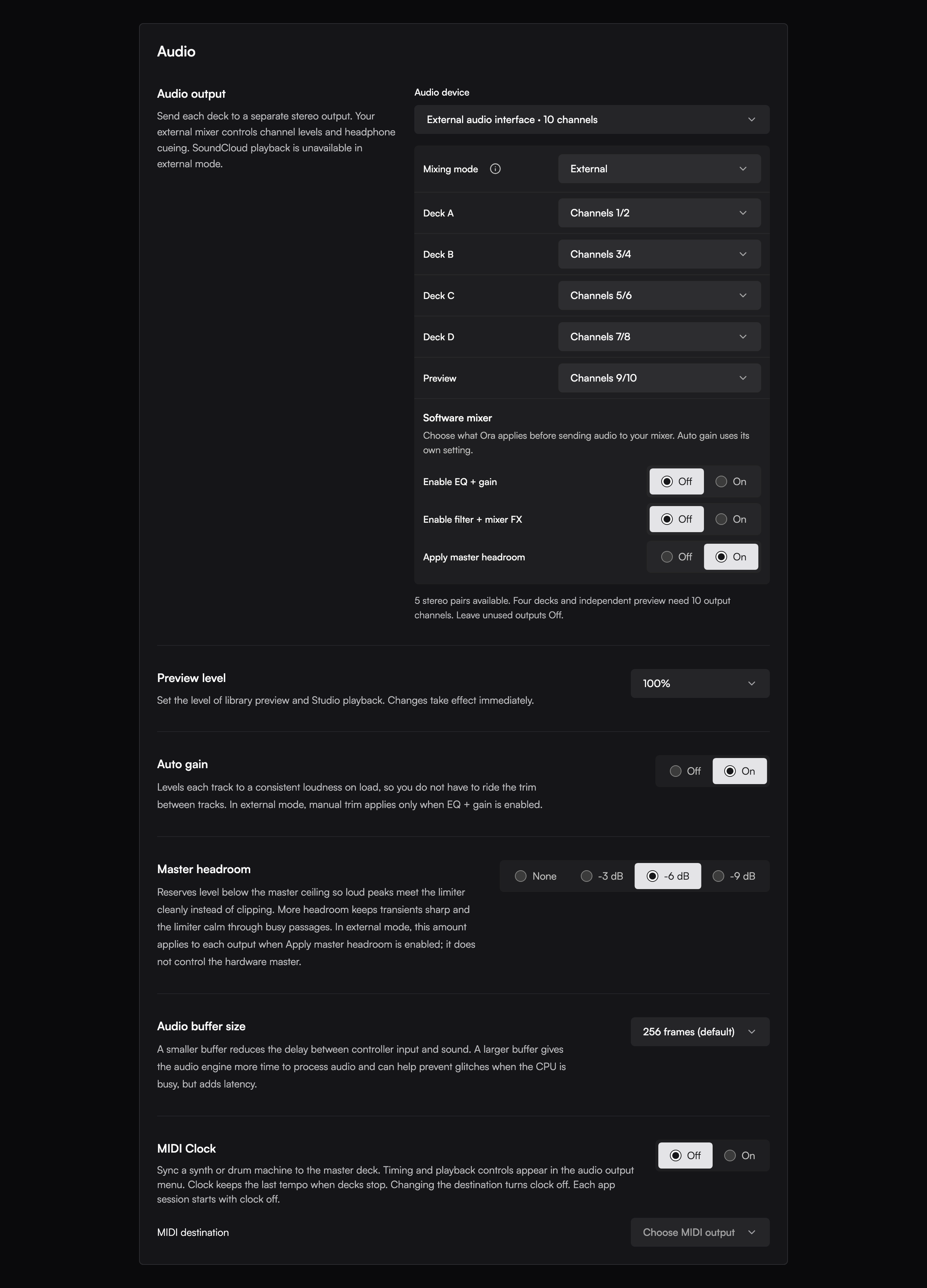
Use external mixing when your hardware mixer has one input for each deck. Your audio interface needs one stereo output pair for each deck you use. For example, four decks and a separate Preview output need ten output channels.
Set the outputs
- Connect the interface outputs to the mixer inputs.
- Open Settings > Audio.
- Select the audio device.
- Set the mixing mode to External.
- Assign a different stereo pair to each deck you use.
- Set unused deck outputs to Off.
- Assign a separate Preview pair if you want to audition tracks or hear Studio playback.
- Select Apply audio settings.
Use the hardware mixer for channel levels, crossfading, and headphone cueing. Use Software mixer to choose the processing Ora DJ applies before it sends the decks out. Use Discard to clear changes you have not applied.
Check the connection
If the selected device disconnects, external outputs stop. Reconnect that device. Ora DJ restores the external routing when the device is available again.
Mix recording requires Internal mode. To record the hardware mix, use a recorder connected to the hardware mixer.
See Audio setup for internal mixing and buffer settings.