MCP access
Connect Codex or Claude Code to your local Ora DJ library to search tracks and help curate playlists.
Connect Codex or Claude Code to your local Ora DJ library using the Model Context Protocol (MCP). Keep Ora DJ open, then go to Settings > Library > Agent access to set up the connection.
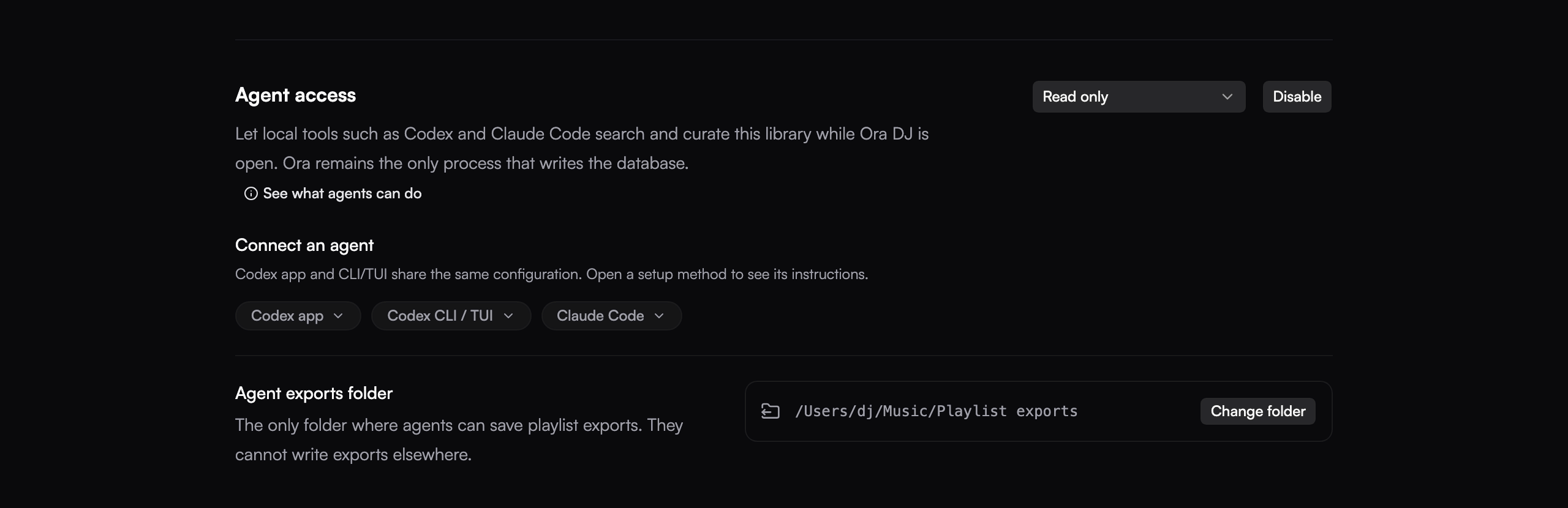
Connect an agent
- Turn on Agent access.
- Choose Codex app, Codex CLI / TUI, or Claude Code to show its setup instructions.
- Follow the instructions shown in Ora DJ, then restart the agent tool if prompted.
- Keep Ora DJ open and ask the agent to search your library.
Codex app and Codex CLI / TUI share their configuration. Copy the setup values from your own app so they point to the right installation.
Choose what it can do
- Read only lets the agent search and answer questions about the library.
- Allow changes for 30 min also permits edits for a limited session. The settings show when that access expires.
- Allow changes keeps editing enabled until you change the setting or turn access off.
With change access, an agent can update track details and tags, create or change manual and dynamic playlists, make a library backup, and export playlists.
Try asking
These examples also appear under See what agents can do in Ora DJ. Start with Use the Ora DJ MCP so your agent knows which library connection to use.
- "Use the Ora DJ MCP to tell me how many tracks I have in each genre, then suggest a cleaner genre list."
- "Use the Ora DJ MCP to create a dynamic playlist of House tracks with energy above 5 that I added in the last 90 days."
- "Use the Ora DJ MCP to create a Deep House playlist in the Other folder with tracks that have no label and no star rating."
- "Use the Ora DJ MCP to export my Friday set as Rekordbox XML."
The first example works with Read only access. Creating playlists or exporting a set requires one of the Allow changes modes. Adjust the genre, folder, and playlist names to match your library.
Export folder
Choose the Agent exports folder in the same settings. Agent-created exports are restricted to that folder. Supported exports include CSV, text, M3U8, Rekordbox XML, and Traktor NML.
The connection to Ora DJ runs locally on your Mac. Data you ask an external agent to read is also subject to that agent tool's own data handling.